
Getting Started with Git Branches
Learn to create and switch Git branches, merge changes into main, and resolve merge conflicts with practical commands and diagrams.
In the previous post, we looked at
.gitignoreand how to keep unnecessary files out of a repository. This time, let’s give our work a little room to grow: Git branches.
What Is a Git Branch?
A branch gives your work its own line of development inside a repository. You can build a feature, fix a bug or try an idea, then bring the changes back into your main branch when they are ready.
Under the hood, a branch is a movable pointer to a commit. Creating one does not copy your whole project into another folder.
Commits made on a feature branch do not move main. However, uncommitted changes are not isolated by branch: they can follow you when you switch branches. Commit your work, or stash it, before switching tasks.
These examples use main. If your repository uses another name, substitute it in the commands below.
See Where You Are
Run these commands inside an existing Git repository with at least one commit:
git status
git branch
git status tells you which branch you are on and whether you have uncommitted changes. git branch lists your local branches; an asterisk marks the current one:
  feature/logging
* main
Create and Switch Branches
To create a branch from your current commit:
git branch feature/logging
That creates the branch but leaves you on your current branch. Switch to it with:
git switch feature/logging
Or do both in one command:
git switch -c feature/logging
If you already created the branch, use git switch without -c.
Older tutorials often use git checkout -b feature/logging. That also creates and switches to a branch; git switch makes the intent clearer.
Use a short, descriptive name such as feature/search, fix/login-error or docs/setup-guide.
A Small Workflow You Can Try
Start on main with a clean working tree, then create your branch:
git switch main
git status
git switch -c feature/logging
Create a new file called logging.txt in your editor and add:
level=info
Review the new file in your editor, then stage and commit it:
git add logging.txt
git diff --cached
git commit -m "Add logging notes"
git add stages the file; git commit records the staged version on your current branch. Continue editing and committing as needed.
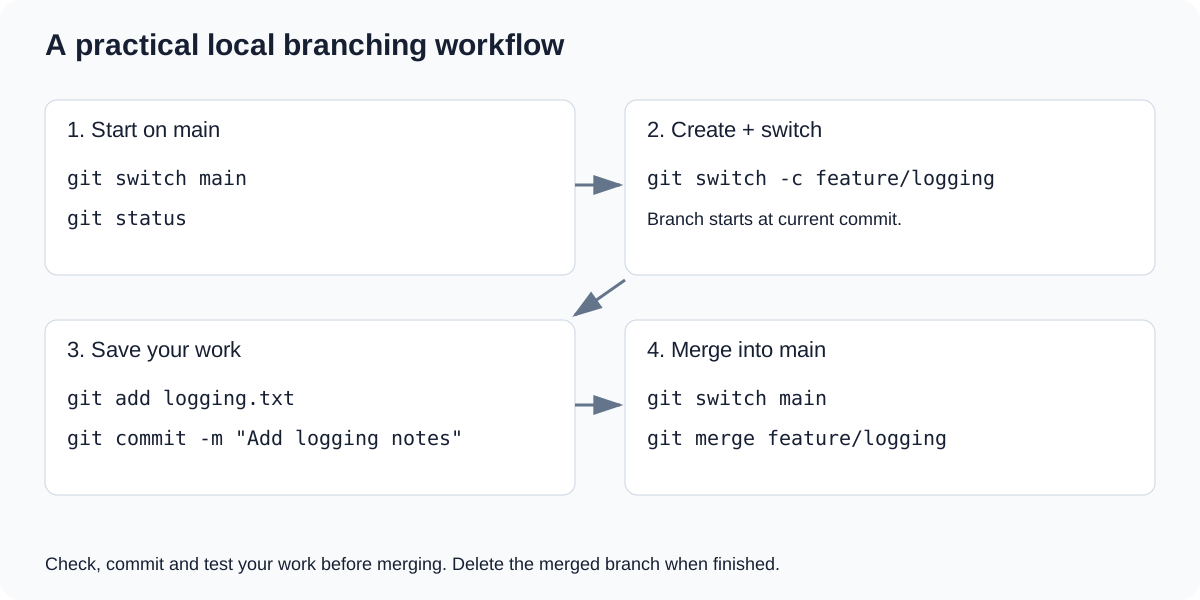
The everyday loop: create a branch, commit a focused change, then merge it into the destination branch.
Merge Your Work Back into Main
When your change is ready and you have tested it, switch to the branch that should receive it:
git switch main
git merge feature/logging
The direction matters: this brings feature/logging into your current branch, main.
If main has not gained any commits since you created the feature branch, Git can usually perform a fast-forward. It moves the main pointer forward to the feature branch’s latest commit, without creating a merge commit.
If both branches have gained commits, their history has diverged. A normal successful merge creates a merge commit with two parents, joining the two histories.
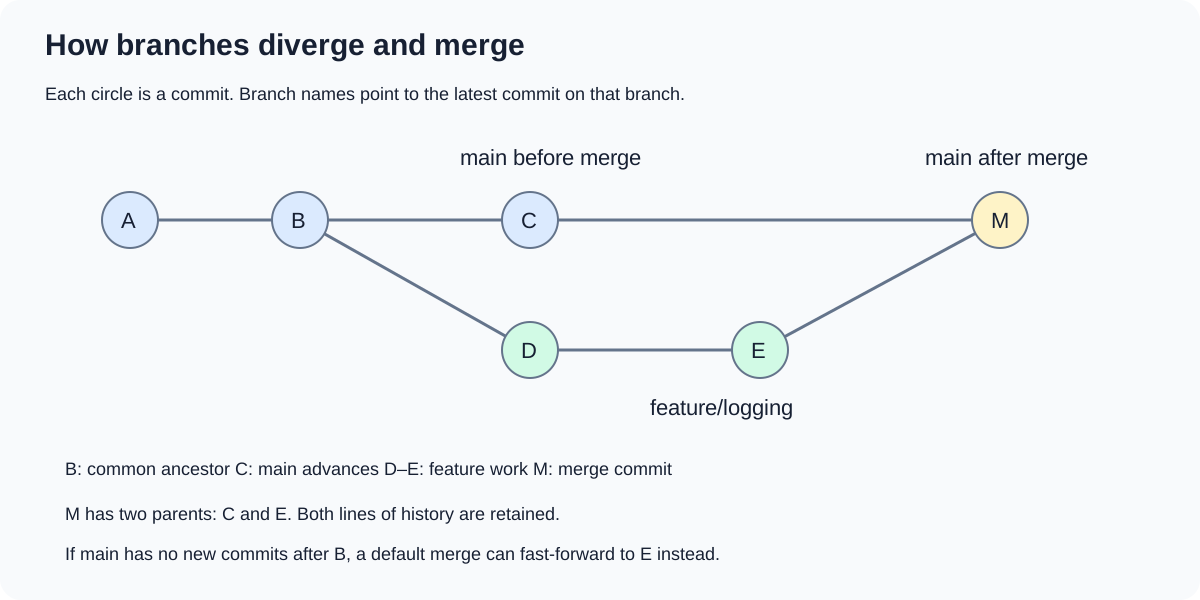
This diagram shows a diverged history. The small workflow above will usually fast-forward if nothing else changes on main.
Inspect the result with:
git log --oneline --graph --all --decorate
Git may open your editor for a merge commit message. Save and close it to complete the commit.
What Happens When There Is a Merge Conflict?
Git can combine many changes automatically, including different edits in the same file. A conflict happens when it cannot safely decide how to combine changes—for example, when two branches change the same line differently.
Imagine that, after the original level=info commit, main changes that line to level=warning while feature/logging changes it to level=debug. Merging the feature into main can leave this in logging.txt:
<<<<<<< HEAD
level=warning
=======
level=debug
>>>>>>> feature/logging
In this merge, HEAD is the current branch, main. The lower section comes from feature/logging.
1. Find the Conflicted Files
git status
Open each conflicted file and inspect both versions. Decide what the final content should be; you can keep one version or write a combined result.
2. Edit and Test the Result
For our example, suppose the intended setting is:
level=info
Replace the whole conflicted block with that line, removing the <<<<<<<, ======= and >>>>>>> markers. This value is an example decision, not something Git chooses for you.
Review the result and run the checks appropriate to your project. You can also catch leftover conflict markers and whitespace errors with:
git diff --check
3. Stage and Complete the Merge
Once all conflicts are resolved:
git add logging.txt
git diff --cached
git commit -m "Merge logging branch; resolve log level"
git status
Stage every resolved file before committing. git add tells Git you have resolved that file; it does not check whether your chosen result is correct.
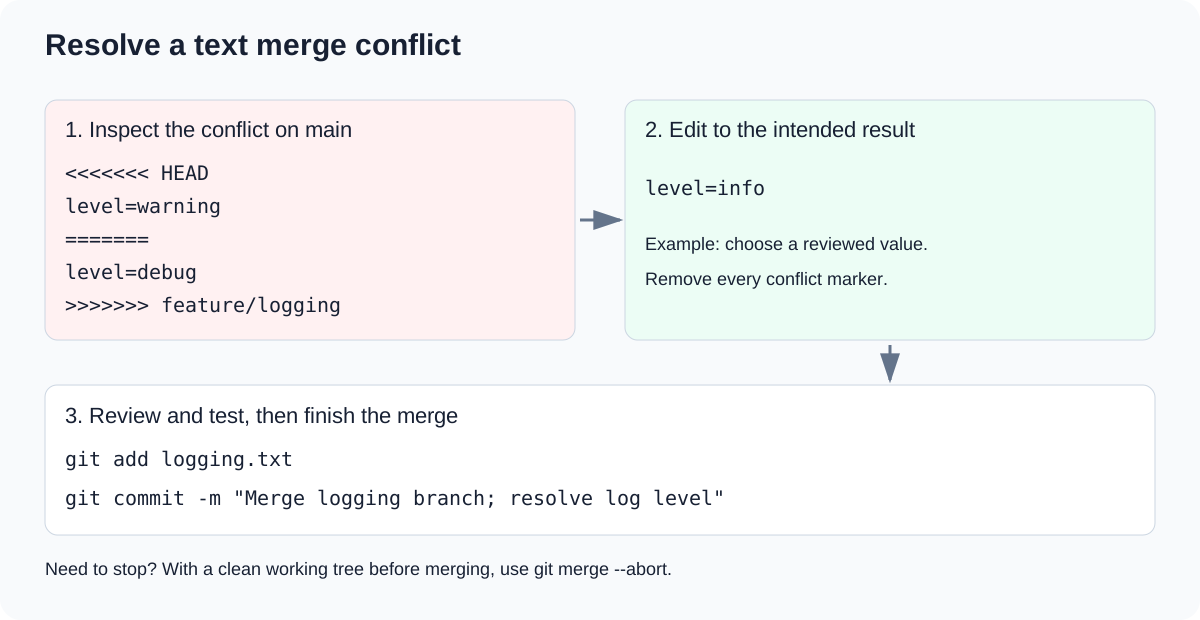
Resolve the content first. Stage and commit only after you have reviewed the result.
To cancel an in-progress merge instead:
git merge --abort
Starting a merge with a clean working tree makes this recovery simpler. If you had uncommitted changes before the merge, Git may not be able to reconstruct them fully.
Delete a Finished Branch
After merging successfully, while you are on main:
git branch -d feature/logging
This removes the local branch name. Commits reachable through main remain in the repository.
If Git refuses because the branch contains unmerged work, inspect it before deleting anything. The lowercase -d provides a useful check against losing track of unfinished work.
A Quick Command Reference
| Task | Command |
|---|---|
| List local branches | git branch |
| Create and switch to a branch | git switch -c feature/logging |
| Switch to an existing branch | git switch main |
| Merge a branch into the current branch | git merge feature/logging |
| View branch history | git log --oneline --graph --all --decorate |
| Cancel an in-progress merge | git merge --abort |
| Delete a merged local branch | git branch -d feature/logging |
These commands work locally. Creating a branch does not publish it to GitHub or another remote.
What’s Next?
Branches let you work on focused changes, keep useful history and bring finished work together. Start with one small branch and practice the whole loop.
Next in the series: Git fetch vs pull vs push—how to share your branches and keep your local repository in sync with a remote.
