
Git Fetch vs Pull vs Push
Understand fetch, pull and push with practical examples and diagrams: inspect remote changes, update local branches and share commits without surprises.
In the previous post, we gave our work a little room to grow with branches. Now let’s get those branches talking to another repository.
You commit a change, open GitHub, and it isn’t there. Or you edit a file on GitHub, return to your terminal, and your local copy still has the old version.
It is easy to look at either situation and wonder whether Git missed something. Usually, nothing has gone wrong. There are two repositories involved, and they have not exchanged those changes yet.
That is where fetch, pull and push come in. The names are short; the confusion they cause can last for a long time. Let’s work through what each command actually does, using the same sort of small configuration change we used in the branches article.
These examples assume a normal clone, a branch called main tracking origin/main, and a clean working tree. Use git status before changing branches or integrating work. Commit or stash unfinished changes first.
Your Repository and GitHub Are Separate Copies
When you clone a repository:
git clone https://github.com/example/project.git
cd project
git remote -v
Git creates a local repository and normally calls the source remote origin. The last command shows its configured addresses:
origin  https://github.com/example/project.git (fetch)
origin  https://github.com/example/project.git (push)
origin is a name, not a special Git server. It could point to GitHub, GitLab, a company server or another repository you can reach.
The distinction that matters is between three things:
main: your local branch.- The remote repository’s
main: a branch in that other repository. origin/main: a reference stored locally, recording the remote branch’s last known position.
That last one deserves a moment. origin/main is not a live view of GitHub. If someone pushes a commit while you are making coffee, your repository does not know about it until it communicates with the remote again.
A successful clone starts you with a useful picture. It does not establish a permanent synchronisation service.
git fetch: Find Out What Changed
Suppose both copies started at commit C. Someone else has since pushed D and E to the remote.
Run:
git fetch origin
In our normal clone, this downloads missing Git objects and updates the configured remote-tracking references, including origin/main. Your local main stays at C, and the files you are working on stay as they were.
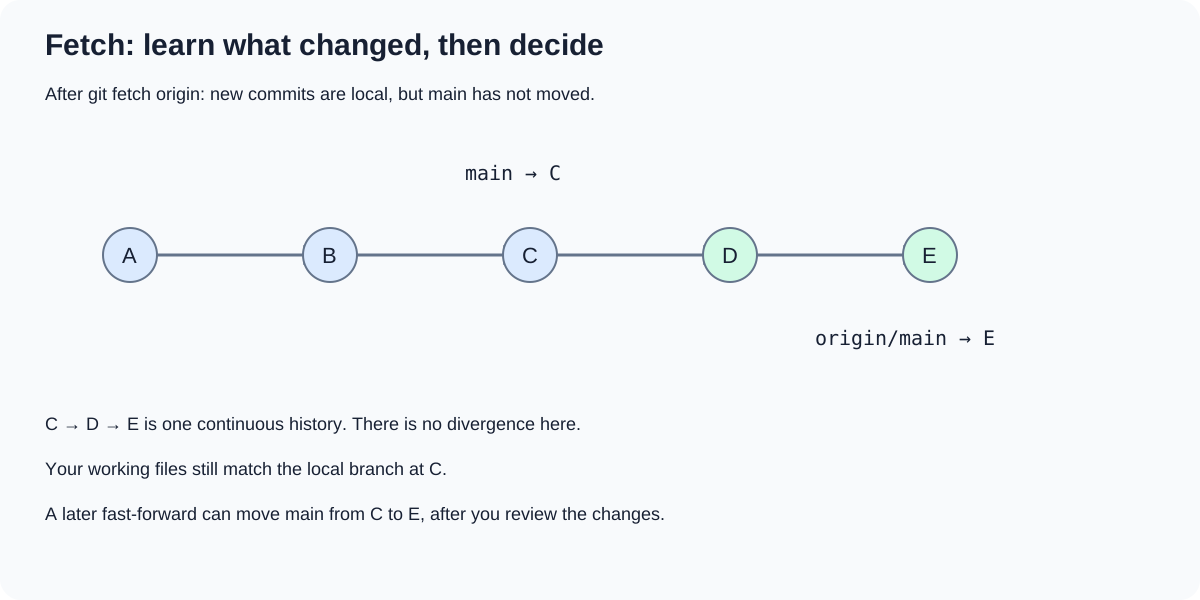
Fetch updates what your repository knows. It does not move your current branch to match.
This is a useful place to pause. Before bringing someone else’s changes into your branch, have a look:
git log --oneline main..origin/main
git diff main origin/main
The first command lists commits reachable from origin/main but not main. The second compares the file contents at the two tips. In this example, you might discover that D updates a README and E changes the logging configuration.
For a wider view:
git log --oneline --graph --decorate --all
There are a few options packed into that command, but each has a useful job:
--onelinekeeps each commit to a short hash and its commit message subject, so the history is easier to scan.--graphdraws the connections between commits beside the log. You can see where histories split and join.--decorateadds labels such asHEAD,mainandorigin/main, showing which commits those names currently point to.--allincludes history reachable from all your local references, including local branches, remote-tracking branches and tags, rather than just the current commit’s history.
For our example, the output might look like this (your commit hashes will differ):
* e5f6a7b (origin/main) Update logging configuration
* d4e5f6a Update README
* c3d4e5f (HEAD -> main) Add initial configuration
Read from the top: the newest commit shown is at origin/main, while HEAD -> main marks your checked-out branch at the older commit below. The single line of stars shows that the history has not diverged; main is simply two commits behind.
One detail worth keeping in mind: --all means all those references in your local repository. It does not contact GitHub. Fetch first if you want the remote-tracking labels to reflect the latest remote state.
I like having that inspection point. When something changes in an environment, understanding the change before applying it is usually time well spent. The same habit works here.
Bring Those Changes into Your Branch
Once you have reviewed the fetched changes, you can integrate them:
git switch main
git merge --ff-only origin/main
Because our local main is still at C and the fetched history continues through D to E, Git can fast-forward: it moves the local branch pointer to E. There is no new merge commit to create.
I have used --ff-only deliberately. For this example, we expect to catch up with the remote, so the command should stop if the history tells a different story.
If you have local commits as well, the branches may have diverged. That needs a decision about merging or rebasing, which we will come back to below.
git pull: Fetch, Then Integrate
git pull combines fetching with an attempt to integrate the fetched changes into your current branch. The integration behaviour depends on the options you pass and your Git configuration: it may fast-forward, merge, rebase or stop because the histories cannot be reconciled under the selected policy.
For a straightforward update, make the intended behaviour explicit:
git switch main
git pull --ff-only
With main tracking origin/main, this fetches from the configured remote and updates main only if a fast-forward is possible.
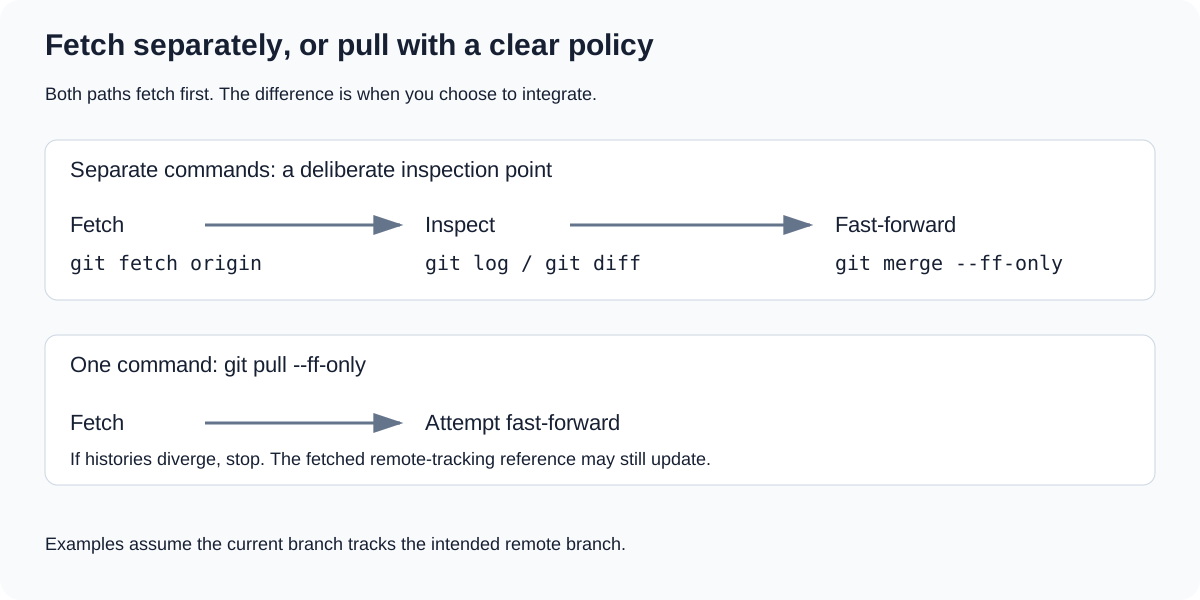
The difference is the pause: fetching separately gives you a chance to inspect before integrating.
If the branches have diverged, --ff-only stops rather than creating a merge commit or rebasing your work. The fetch can still have updated origin/main; it is the integration into your branch that did not happen.
There is nothing wrong with using pull. The useful habit is knowing what you have asked it to do. A short command is convenient when the operation behind it is familiar.
If you want fast-forward-only pulls as your default, you can configure that for this repository:
git config pull.ff only
That is a workflow choice. A project that expects a different integration policy may need different settings.
git push: Share Your Commits
Now let’s go in the other direction. Your local branch has a new commit, and you want the remote repository to receive it.
Continue the logging example on a feature branch:
git switch -c feature/logging
Create a file called logging.txt in your editor with:
level=info
Then review and commit it:
git add logging.txt
git diff --cached
git commit -m "Add logging configuration"
At this point, the commit exists locally. Refreshing GitHub will not make it appear there, however many times you press the button waiting for the magic to happen.
To send the branch to origin:
git push -u origin feature/logging
Push transfers the required objects and asks the remote to update the named branch. The -u option also sets the upstream relationship for your local branch.
After a successful push, while you are on feature/logging, subsequent commits can normally be shared with:
git push
You can inspect the upstream relationship with:
git branch -vv
One detail is easy to overlook: push shares commits. Saving a file is not enough, and staging a change is not enough either. If the change has not been committed, it is not part of the branch history you are sending.
Publishing the feature branch also does not merge it into main. It makes that branch available on the remote, where you can open a pull request if that is how the project works.
When Git Refuses Your Push
Sooner or later, you may meet this:
! [rejected] main -> main (non-fast-forward)
For this example, imagine you committed D on your local main while someone else pushed E to the remote main. Both commits started from C, but neither contains the other.
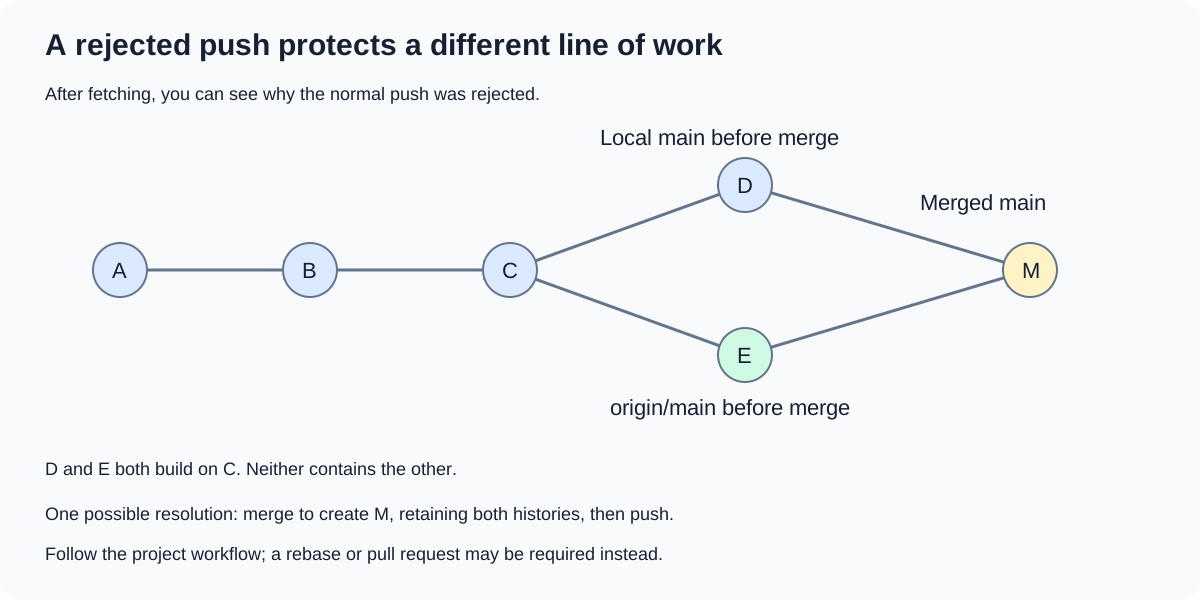
Two valid changes, two different tips. Git needs you to reconcile them before a normal push can advance the remote branch.
Moving the remote branch directly from E to D would leave E outside that branch’s history. Git refuses the normal push rather than assuming that is what you intended.
A rejection is an explanation to investigate. Adding --force before reading it is a fairly efficient way to turn a small problem into a more interesting afternoon :)
Start with:
git fetch origin
git status
git log --oneline --graph --decorate --all
If the project uses a merge workflow, and you have reviewed the changes, one way to reconcile our example is:
git switch main
git merge origin/main
Resolve any conflicts, review the result and run the project’s checks before pushing:
git push
In this diverged example, a successful merge creates a commit containing both histories. If the project uses pull requests or requires rebasing, follow that workflow instead. The branches article covers the mechanics of resolving a merge conflict.
Also read the actual rejection message: permissions, branch protection and server checks can reject pushes for other reasons. Merging will not fix an authentication problem.
A Note on Force Push
A force push can replace a remote branch’s history. There are valid uses, such as updating a personal feature branch after a deliberate rebase, but it deserves a decision rather than a reflex.
git push --force-with-lease adds a check against the expected remote branch position. In its usual form, that expectation comes from your local remote-tracking reference. Background fetches can update that reference, so the lease is not a guarantee that you have personally reviewed everything it could replace.
For the workflow in this article, there is no need to force anything. Fetch, inspect and reconcile the histories.
A Small Everyday Workflow
Here is the sequence I would start with for a shared repository where main should simply catch up before new work begins:
git switch main
git status
git fetch origin
git log --oneline main..origin/main
git diff main origin/main
git merge --ff-only origin/main
git switch -c feature/logging
Stop if the working tree is not clean or the fast-forward fails; those are points to inspect, not lines to skip over.
Make your focused change, then stage the specific files, review and commit:
git add logging.txt
git diff --cached
git commit -m "Add logging configuration"
git push -u origin feature/logging
This is an alternative walkthrough of the feature branch example above; use a fresh branch name if you already created feature/logging.
Once you are comfortable with the process, git pull --ff-only can replace the separate fetch and fast-forward steps when you do not need the inspection pause. The point is to understand the operations well enough to choose.
A Quick Command Reference
| Task | Command |
|---|---|
| Show configured remotes | git remote -v |
| Fetch from origin | git fetch origin |
| List commits on origin/main that main does not contain | git log --oneline main..origin/main |
| Compare the two branch tips | git diff main origin/main |
| Inspect branch history | git log --oneline --graph --decorate --all |
| Fast-forward current branch to fetched main | git merge --ff-only origin/main |
| Fetch and attempt a fast-forward of the tracked branch | git pull --ff-only |
| Publish a new branch and set its upstream | git push -u origin feature/logging |
| Push the current branch using its configured destination | git push |
| Show local branches and their upstreams | git branch -vv |
What’s Next?
When you are unsure which command you need, ask what you want to happen. Find out what changed on the remote? Fetch. Bring those changes into your branch as well? Pull, with an integration policy you understand. Share your own commits? Push.
And when the result is unexpected, give yourself a moment to look at the history before trying to repair it. git status and a readable graph are often more useful than another command copied from a search result.
Next in the series: undoing changes without panic - restore, revert, reset and reflog, and how to choose the operation that matches what you actually want to undo.
