
SSH Config Beyond Host Aliases
Make SSH connections predictable with per-host identities, ProxyJump, configuration ordering and connection reuse, with practical examples and troubleshooting commands.
You know the connection command. Or at least you knew it last week.
There was a different username, a particular key, and a jump server somewhere in the middle. The terminal history will have it. Probably between three commands that almost worked :)
In SSH Connection Manager in Command Line, we made connections easier to remember. Now let’s choose the right key, reach internal hosts and inspect SSH’s decisions before blaming the network.
These OpenSSH examples target Linux and macOS. Replace the example addresses and key paths with your own; the corresponding public keys must already be authorised on the servers. Configuration cannot arrange access by itself, however nicely you indent it.
Start with One Connection You Can Explain
OpenSSH reads ~/.ssh/config itself; your shell does not source it.
Create the directory if needed, and restrict its permissions:
mkdir -p ~/.ssh
chmod 700 ~/.ssh
Add this to ~/.ssh/config, observing the ordering discussed below:
Host lab-web
    HostName web01.lab.example.com
    User adminuser
    IdentityFile ~/.ssh/id_ed25519_lab
    IdentitiesOnly yes
Save, restrict the file’s permissions, then connect:
chmod 600 ~/.ssh/config
ssh lab-web
Host matches your alias, HostName supplies the destination, User selects the account, and IdentityFile selects the local identity.
IdentitiesOnly yes limits authentication to configured identities and certificates, avoiding unrelated keys loaded in your agent. The agent can still authenticate with a configured identity. Multiple matching IdentityFile directives accumulate, so inspect the effective configuration if unexpected keys appear.
Ordering Matters More Than Indentation
For most SSH options, the first obtained value wins. Put specific exceptions before broad defaults:
Host lab-db
    HostName db01.lab.example.com
    User dbadmin

Host lab-*
    User adminuser
    ServerAliveInterval 60
    ServerAliveCountMax 3

Host *
    ForwardAgent no
For ssh lab-db, the specific User dbadmin is found first. The later lab-* block supplies the keepalive settings, but does not replace the user.
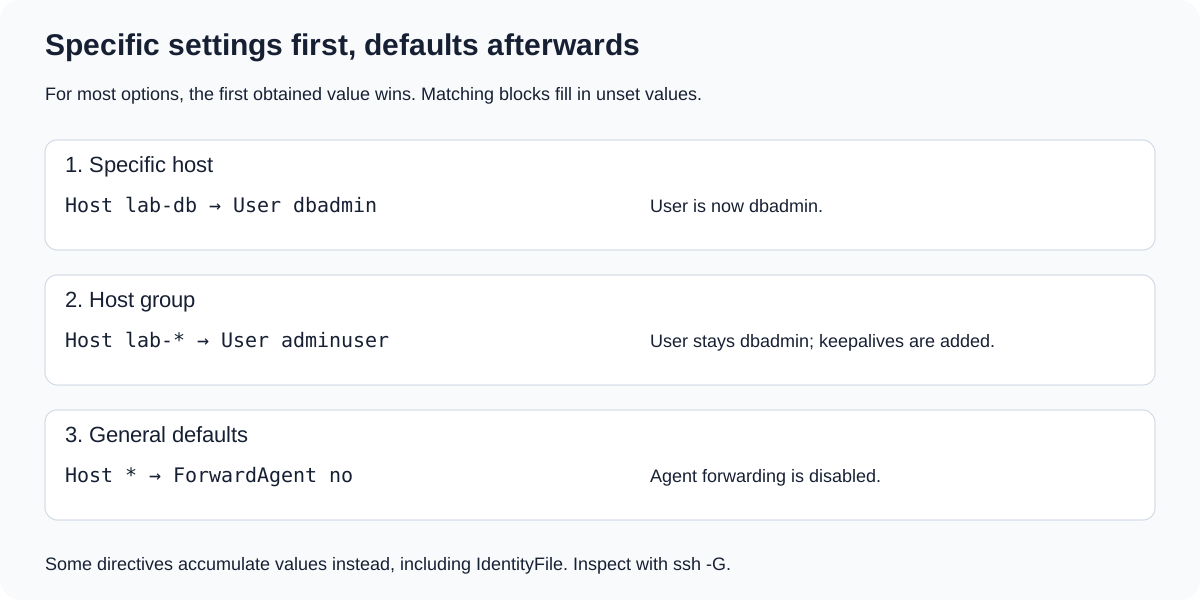
Specific settings first; broader defaults afterwards. Several matching blocks can contribute to one connection.
ServerAliveInterval 60 checks the encrypted connection after 60 seconds without server data; ServerAliveCountMax 3 limits unanswered checks before disconnecting. These detect an unresponsive connection; they do not repair it.
Here, lab-* matches your alias, not the HostName inside its block.
Reach an Internal Host with ProxyJump
When an application server is reachable only through a bastion, you do not need to log into one machine and start another SSH session manually. Let the local client handle the route:
Host prod-bastion
    HostName bastion.example.com
    User gatewayuser
    IdentityFile ~/.ssh/id_ed25519_gateway
    IdentitiesOnly yes

Host prod-app
    HostName 10.20.30.40
    User appadmin
    IdentityFile ~/.ssh/id_ed25519_production
    IdentitiesOnly yes
    ProxyJump prod-bastion
Then connect with:
ssh prod-app
Your client authenticates to the bastion, opens a TCP forwarding path, then establishes SSH to the destination through it. Each server has its own authentication and host-key verification.
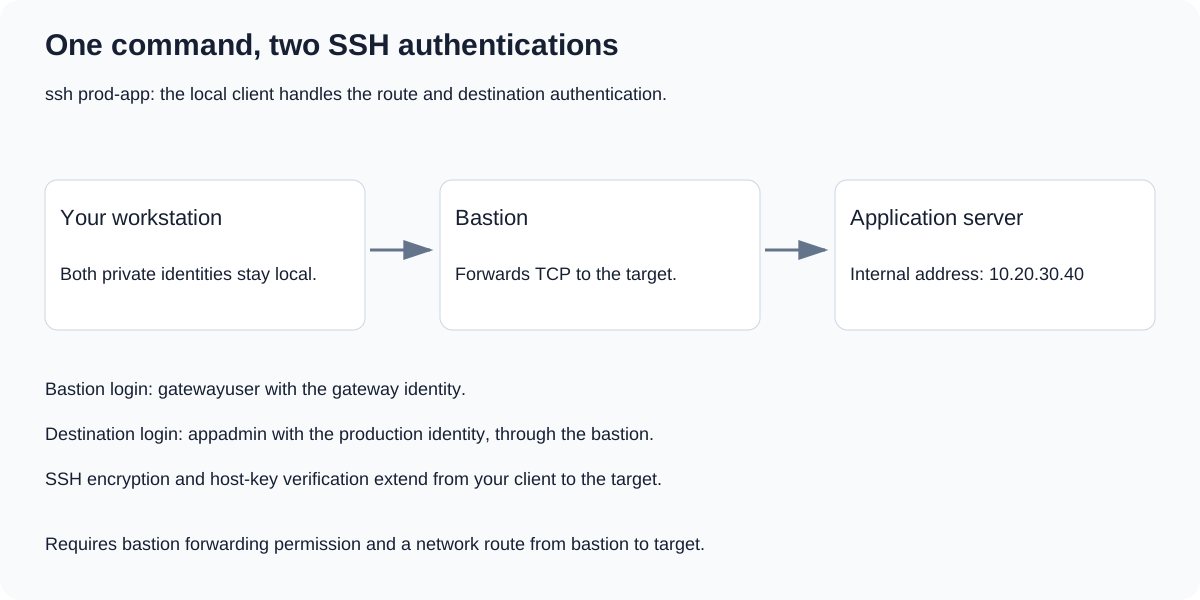
The bastion supplies the route. Your workstation handles authentication to the destination through that route.
The bastion must allow forwarding and reach the target’s SSH port. Give it its own account and key settings; the target’s settings do not automatically apply to it.
Private keys stay local, and this route needs no agent forwarding. That separate feature exposes access to your agent through the remote session; enable it only deliberately. Verify both servers’ host-key fingerprints through your usual trusted process.
Inspect the Configuration Before Connecting
When the account or key is wrong, I would rather inspect the client’s decisions than edit settings until the error changes:
ssh -G prod-app
-G prints the evaluated configuration without connecting. Check hostname, user, identityfile, identitiesonly and proxyjump. It shows client choices, not server reachability or key acceptance. Configurations using Match exec can execute those commands during evaluation; our examples use only Host blocks.
For a connection attempt with diagnostic output:
ssh -v prod-app
-v shows configuration loading, connection attempts and authentication; -vv or -vvv adds detail. Check which key is offered before assuming the server has forgotten it. Review diagnostics before sharing them: they include accounts, hostnames and local paths.
To inspect a separate test configuration:
ssh -F ./ssh-config-test -G prod-app
-F selects the test file and skips the system-wide configuration. Identity paths are not relative to the test file; use absolute paths or ~/.ssh/....
Reuse Connections When It Helps
OpenSSH can reuse an authenticated connection for several sessions, called multiplexing. First, create a private directory for its control sockets:
mkdir -p ~/.ssh/control
chmod 700 ~/.ssh/control
Add these options to lab-web (or a later matching block if still unset):
Host lab-web
    ControlMaster auto
    ControlPath ~/.ssh/control/%C
    ControlPersist 5m
ControlMaster auto enables reuse; ControlPath locates the local socket, with %C hashing connection parameters into a short name. ControlPersist 5m keeps the master available for five idle minutes.
After you have opened a connection, inspect or close the master with:
ssh -O check lab-web
ssh -O exit lab-web
-O controls the master: check reports its status (and fails if absent), while exit terminates it and can affect active sessions.
Changing configuration does not replace an existing connection or its authentication. When testing another identity, close the master or bypass multiplexing:
ssh -o ControlMaster=no -o ControlPath=none lab-web
-o sets command-line options; these prevent this invocation from creating or using a shared master.
Keep the File Understandable
There is no prize for fitting every SSH option into one file. Keep exceptions visible; when it grows, split it with Include:
Include ~/.ssh/config.d/*.conf

Host *
    ForwardAgent no
Includes are processed in place, with wildcard matches in lexical order. Broad defaults in an early file can therefore beat specific settings in a later one. Protect these files like the main configuration.
An alias saves typing. A good configuration records the account, identity and route, and lets you inspect those decisions when a connection behaves unexpectedly.
That is a much better use of a configuration file than making terminal history your connection manager.