
Two Names, One File: Understanding Linux Links
Create hard and symbolic links, change their shared data, remove a filename, and explain why one link survives while another becomes dangling.
Create a file, give it two more names, then delete the first name. One of the remaining names still works. The other complains that the file does not exist.
That sounds inconsistent until you look at what each name refers to.
This is the second article in my RHCSA preparation series. Let’s use a small experiment to separate filenames, inodes and symbolic links, without treating any of them as magic shortcuts.
The first article covered redirection and pipes. We will use redirection here to make a small file and change its contents deliberately.
Start with a File You Own
Use your ordinary account on your Linux lab machine, and a new directory on one local filesystem:
mkdir ~/rhcsa-links-lab
cd ~/rhcsa-links-lab
echo 'first revision' > notes.txt
Choose another directory name if this one already exists. Run the following examples in order; they change and remove only the practice files we create.
On a typical Linux filesystem, a directory entry associates a name with an inode. The inode holds metadata such as ownership, permissions and the hard-link count, together with information used to locate the file’s data. The filename itself belongs to the directory entry.
You already have one hard link: notes.txt is a name referring to that file.
Add a Hard Link and a Symbolic Link
ln notes.txt notes-hard.txt
ln -s notes.txt notes-soft.txt
ls -l
The order for ln is the existing target followed by the new link name. Without -s, it creates a hard link; with -s, a symbolic link.
In the listing, look for two things:
notes.txtandnotes-hard.txthave a hard-link count of 2, in the field before the owner name.notes-soft.txtstarts withland shows-> notes.txt.
The symbolic link has its own inode and stores the pathname notes.txt. It does not add another hard link to the target file.
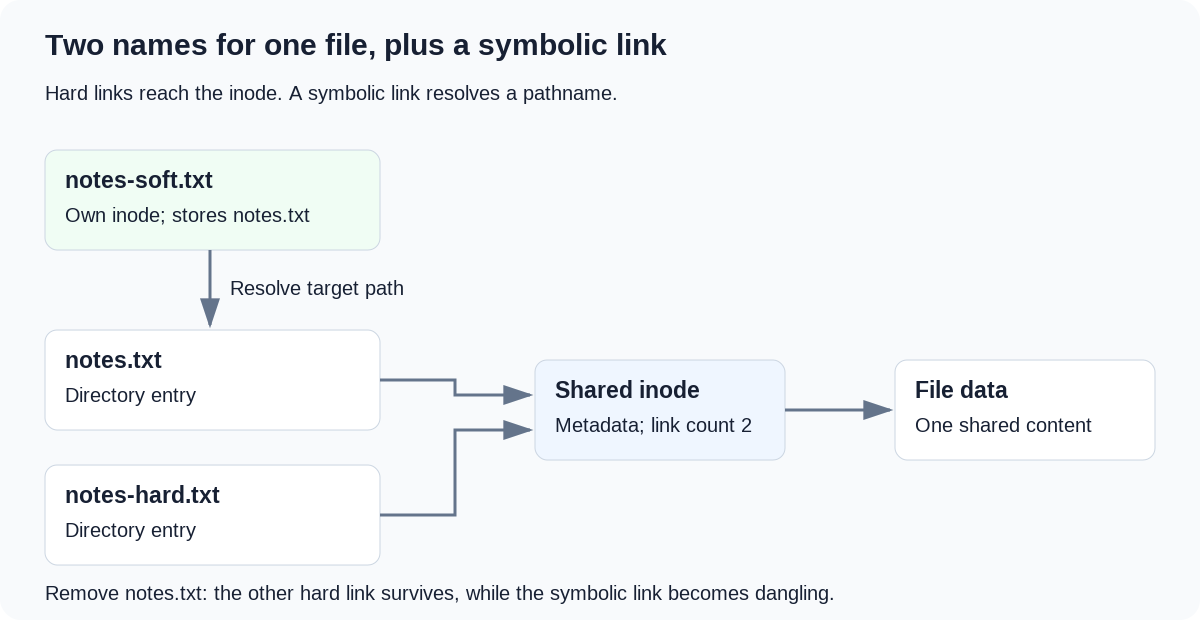
There are two names for one regular file, plus a separate symbolic link. We have not made three copies of the contents.
Change the File Through Either Hard Link
Append a line through the second name:
echo 'added through the hard link' >> notes-hard.txt
cat notes.txt
cat notes-soft.txt
Both reads show:
first revision
added through the hard link
No synchronisation took place. The hard links refer to the same file, and the symbolic link resolves to that file through notes.txt.
This is why calling a hard link an “identical copy” leads you in the wrong direction. Editing the shared file through one name changes what the other name accesses.
A small qualification matters: an application can save by replacing a file with a new one, rather than modifying the existing file. That can change which inode a particular name refers to. Our append command modifies the existing file, so the example demonstrates the shared data directly.
Remove the Name We Created First
rm notes.txt
cat notes-hard.txt
The remaining hard link still prints both lines. Now try:
cat notes-soft.txt
You get a missing-file diagnostic. ls -l still shows the symbolic link and its target text, but that pathname no longer resolves to an existing file. This is a dangling symbolic link.
The hard link survived because notes.txt was never a privileged “original.” Both directory entries referred to the same inode. Removing one name left the other in place, with its link count reduced to 1.
The symbolic link was following a particular name. It cannot decide to use notes-hard.txt instead just because we know that name reaches the same data. Filesystems are not especially interested in our intentions :)
Restore the Missing Name
ln notes-hard.txt notes.txt
cat notes-soft.txt
The symbolic link works again. We restored a pathname it could resolve. We did not edit or recreate the symbolic link itself.
This distinction helps when troubleshooting: a broken symbolic link tells you about its target path, not necessarily whether the underlying data still exists under another name.
Choose the Link That Matches the Job
| Requirement | Hard link | Symbolic link |
|---|---|---|
| Another name for the same regular file | Yes | Reaches it through a pathname |
| Target on another filesystem | No | Yes |
| Target is a directory | Not for normal use | Yes |
| Survive removal of the first filename | Yes | Only if its own target path still resolves |
A symbolic link with a relative target, such as our notes.txt, resolves that target from the directory containing the link. It does not resolve it from whichever directory you happen to be working in. Moving the link elsewhere can therefore change what it reaches.
Hard links stay within one filesystem. A second disk or a separately mounted filesystem is not another place to put a hard link to this inode. For that job, a symbolic link can refer to the other path.
Remove the Link Deliberately
To remove our symbolic link:
rm notes-soft.txt
cat notes.txt
The file remains readable. For a symbolic link to a directory, also use plain rm linkname, without a trailing slash. Recursive operations and a trailing slash can involve the target directory; removing one link does not need either.
Removing the final hard link removes the last directory entry for the file. On Linux, if a process still has the file open, its storage is not reclaimed until the remaining open references are closed. A filename disappearing and disk space becoming available are related events, but they do not always happen together.
For revision, predict what each cat will do before running it. The useful question is always the same: does this name refer directly to the file, or does it contain a pathname that must still be resolved?
References
- GNU Coreutils: creating links with ln
- Linux inode information
- Linux symbolic-link handling
- Linux unlink behaviour
- Red Hat RHCSA 10 Cert Guide, Chapter 3: Essential File Management Tools, my study reference.
Leave a comment
Questions, corrections or a different approach? Join the discussion with your GitHub account.