
Where Does the Output Go? Linux Redirection and Pipes
Follow Bash input, output and errors through small experiments, understand redirection order, and see what actually travels through a pipe.
I am preparing for RHCSA on RHEL 10, and turning some of my study notes into practical articles along the way.
My Linux experience goes back more than a decade, and I have earned RHCE certifications more than once. That gives me a reason to revisit the fundamentals carefully. Familiar commands are easy to type without stopping to explain exactly what they do.
This series is for people preparing for their exam, and for anyone who wants to understand the commands they already use. I am studying with the Red Hat RHCSA 10 Cert Guide, but these articles use their own examples and focus on one idea at a time. They are independent study companions, with no exam questions or promise that memorising a post will get you a pass.
Let’s start with output. Specifically, the output that refuses to go where you thought you sent it :)
Three Connections to Keep Track Of
A command running in a terminal normally inherits three connections, called file descriptors:
| Number | Name | Usual connection |
|---|---|---|
0 |
Standard input, STDIN | Keyboard |
1 |
Standard output, STDOUT | Terminal |
2 |
Standard error, STDERR | Terminal |
Normal output and errors can appear on the same screen while travelling through different connections. The shell can redirect them independently.
Use Bash on your Linux lab machine, as your ordinary user. Start in a new practice directory:
  mkdir ~/rhcsa-streams-lab
  cd ~/rhcsa-streams-lab
  echo 'service ready' > service.txt
Choose a different directory name if that one already exists. The examples deliberately overwrite files inside it. Run the commands in order.
The Error That Escapes the File
Ask cat to read one existing file and one missing file:
cat service.txt missing.txt

service ready
cat: missing.txt: No such file or directory
You should see service ready and a diagnostic about missing.txt. The exact wording depends on the system and language settings on mine it reads:
cat service.txt missing.txt > result.txt
cat result.txt
Now redirect the normal output:
cat service.txt missing.txt > result.txt
cat result.txt
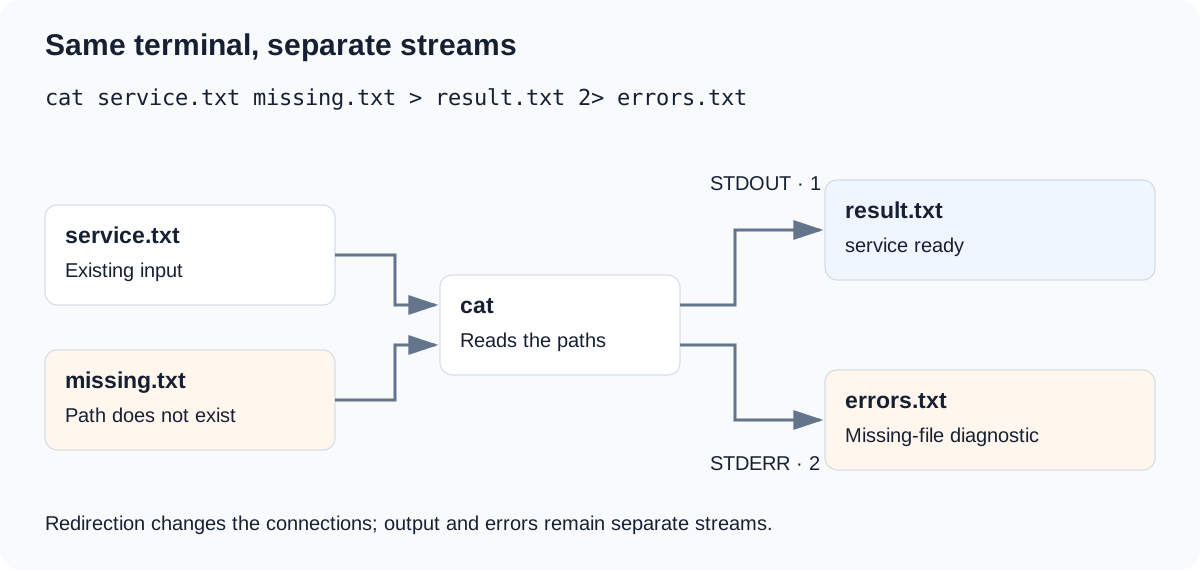
The first command still prints the error in the terminal. The second shows that result.txt contains only service ready.
> means 1>: it redirects STDOUT. STDERR still goes to the terminal. Bash has followed the instruction quite precisely, which is sometimes an irritating quality in computers :)
To separate the streams explicitly:
cat service.txt missing.txt > result.txt 2> errors.txt
cat errors.txt
The diagnostic is now in errors.txt. You have a result file and a separate account of what could not be read.
Combine Them in the Right Order
To put both streams in one file:
cat service.txt missing.txt > combined.txt 2>&1
cat combined.txt
Read the redirections from left to right:
> combined.txtconnects STDOUT to the file.2>&1connects STDERR to STDOUT’s current destination.
2>&1 does not choose a filename. It duplicates the connection that descriptor 1 has at that moment.
Reverse the order and you change the result:
cat service.txt missing.txt 2>&1 > normal-only.txt
Here, STDERR first takes STDOUT’s original connection to the terminal. Redirecting STDOUT afterwards does not move STDERR again. The diagnostic stays on screen, and normal-only.txt contains the normal output.
Bash also provides this shorthand for sending both streams to a file:
cat service.txt missing.txt &> combined.txt
That is useful Bash syntax. Use > combined.txt 2>&1 when you need the portable shell form.
Overwrite, Append, or Discard
The difference between > and >> deserves a moment before you run either against a useful file:
echo 'first check' > checks.txt
echo 'second check' >> checks.txt
cat checks.txt
> creates or truncates the destination; >> creates or appends to it. Truncation happens when the shell opens the file, before the command starts reading its input.
That is why you must not use the same input and output file with cat < service.txt > service.txt: the contents disappear before cat can read them. No amount of staring at the terminal will put them back.
For input from a file, use a separate destination:
cat < service.txt > service-copy.txt
To discard errors deliberately:
cat service.txt missing.txt 2> /dev/null
You still get service ready. You have also hidden the explanation of the missing input. Discarding a diagnostic does not make the failed operation succeed.
A Pipe Has a Command at the Other End
Compare these:
cat service.txt > less
cat service.txt | less
The first writes a file named less. The second starts the less command and connects cat’s STDOUT to its STDIN. Press q to leave the pager.
A plain pipe carries STDOUT. To include STDERR, join it to STDOUT before the pipe:
cat service.txt missing.txt 2>&1 | less
Both the content and the diagnostic now reach the pager. That is handy when inspecting output yourself; a program expecting clean records might find the extra diagnostic rather less helpful.
Before running a redirection, predict where the normal output goes, where the errors go, and whether the destination will be overwritten. Then check the files. Being able to explain the result is better preparation than recognising the punctuation.
References
- Bash redirections
- Bash pipelines
- Bash reference manual
- Red Hat RHCSA 10 Cert Guide, Chapter 2: Using Essential Tools, my study reference.