
Rebuilding Remove-OldFiles: A SQL Table, Not a Platform
Move cleanup rules from CSV to SQL Server, keep Windows scheduling straightforward, and resist turning a useful PowerShell module into a platform.
My original database idea was fairly modest: put the cleanup rules in a table instead of a CSV.
At the company where I used this solution, I already had a SQL Server database for automations that needed persistent storage. Keeping retention rules there felt like a natural next step. Each configured machine would read the rules it needed, do the cleanup and report back.
Somewhere along the rebuild, that simple idea started collecting more architecture. Machine registration, workers, execution history, coordination. Interesting problems, certainly. Also rather more than I had asked a log cleanup script to become.
Time to take a step back. I wanted a more flexible tool, and the reporting and execution work was worth keeping. The extra application could stay on the drawing board.
Give the Task a Job Name
The design we settled on is Windows, PowerShell and SQL Server. The systems engineer configures a scheduled task with a job name, such as AppLogs. The module reads the enabled rules for that name and processes them one at a time.
Several rows can belong to the same job. Several tasks on one machine can use different job names. If a server is replaced, the engineer configures the task on its replacement; there is no machine registry to repair first.
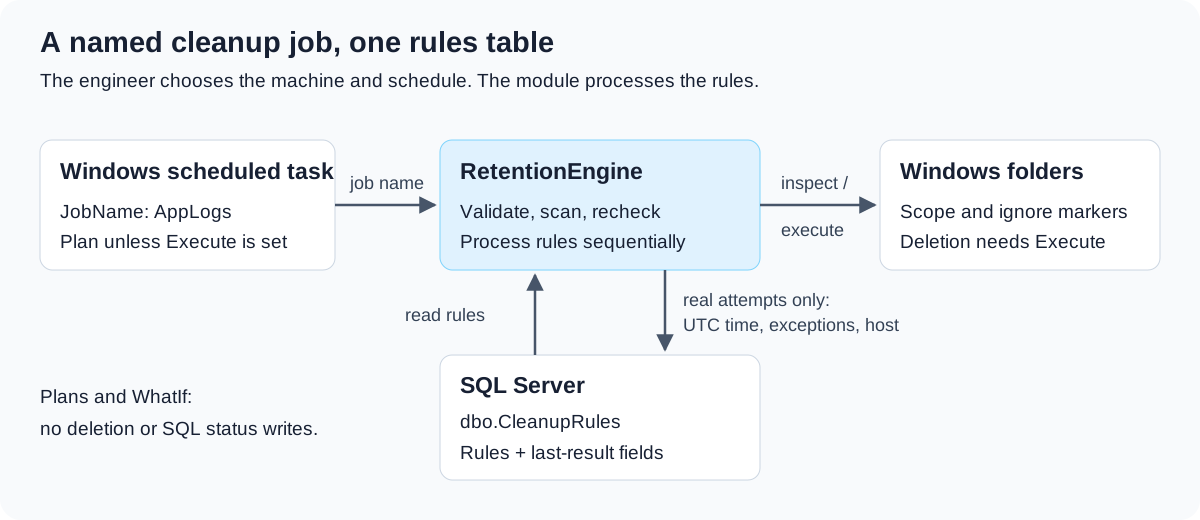
The database records which machine actually ran the rule. That is useful information when investigating an outcome, but it does not assign work or prevent duplicate tasks. Scheduling and avoiding overlapping runs remain the engineer’s responsibility.
There is enough to configure in most environments already. I did not need to invent another control plane for this one.
One Table, Just Enough Feedback
Each rule holds a job name, cleanup path, extension, retention days, recursion setting and enabled flag. A generated rule ID identifies it independently of its position in a file.
Three fields describe its most recent real attempt:
| Field | What it tells us |
|---|---|
LastExecutedAtUtc |
When the attempt finished |
LastHadExceptions |
Whether it encountered an exception |
LastMachineName |
Where it ran |
These are last-result fields, not a history of every run. A clean attempt with nothing to delete still updates them and clears an earlier exception flag. A plan or -WhatIf run leaves them alone.
That answers the small question I had in mind: did this rule run, where, and did something go wrong?
For the explanation of what went wrong, we still need the detailed result and logs. My New-LogEntry article covers the function I use for logging. An existing task wrapper can load it and record job names, outcomes and errors; this module does not import it automatically. A bit in a table is useful, but it is a very short troubleshooting conversation.
Configure Without Editing the Script
From the repository or deployed runtime directory:
Import-Module ./src/RetentionEngine/RetentionEngine.psd1 -Force

$connection =
@{
    ServerInstance = 'SQL01'
    Database       = 'Automation'
}

Get-RetentionJob @connection
That discovery command gives the engineer the configured job names. Creating a rule is another explicit operation:
$rule =
@{
    JobName           = 'AppLogs'
    CleanupPath       = 'D:\AppLogs'
    FileExtension     = 'log'
    RetentionDays     = 30
    IncludeSubfolders = $true
}

New-RetentionPolicy @connection @rule -WhatIf
Here, -WhatIf validates the proposed settings without connecting to SQL Server. Remove it to insert the rule. This does not install a task or start a cleanup.
Integrated authentication is the default; SQL authentication accepts a credential supplied by the caller. The maintained Microsoft.Data.SqlClient driver and its dependencies ship with the module. Production machines need neither the SqlServer PowerShell module nor an internet connection to restore packages. In an air-gapped network, that is a practical requirement rather than a packaging preference.
The implementation guide contains table deployment, permissions and scheduling instructions. The CSV commands remain available for migration reporting; they do not silently populate SQL or start deleting files.
Keep Execution Boring
The same entry point plans a named job by default:
$plan = Invoke-RetentionCleanup @connection -JobName 'AppLogs'

Invoke-RetentionCleanup @connection -JobName 'AppLogs' -Execute -WhatIf
Real deletion requires -Execute. The first article covers the selection and rechecking behaviour, so I will spare you the same walkthrough here.
The database adds one operational wrinkle: deleting a file and recording the outcome are separate operations. We check permission to update the status before removal, but a connection can still fail afterwards. If recording fails, the job stops before the next rule. Files already removed do not come back because SQL Server missed the update.
Keep the execution result. The scheduled entry point returns JSON, but Task Scheduler does not retain that output automatically; the wrapper must capture it. HTML remains an explicit export of a report-only scan, rather than a receipt for completed deletions.
Know When to Stop Building
The implementation is at release-candidate stage. Live SQL acceptance in the Windows VM, under the intended task account, remains a release gate. A set of passing tests is useful evidence; it cannot tell us whether that account can reach our server and shares overnight.
We now have the shape I originally wanted: centrally stored rules, a reusable module, a scheduled command and useful feedback. The report makes review easier, and the database removes the need to distribute CSV changes.
That is a worthwhile rebuild. It also gives this pair of articles a stopping point. Another post should follow a real lesson from using the solution, rather than the next function we happen to edit.