
Exchange Online - Certificate Based Authentication - Step by Step
Current guidance and scope
Updated 23 October 2026: This walkthrough documents the 2020 portal and module 2.0.3. Its screenshots and role-assignment sequence are historical, not a current end-to-end deployment runbook. For new deployments, follow Microsoft’s app-only authentication procedure, including current module prerequisites and supported commands.
Certificate authentication remains useful for unattended automation. Separate authentication from authorisation: registering a certificate proves the application’s identity, while API consent and assigned roles govern what it can do. Protect the private key and plan certificate renewal before expiry.
Before adapting the historical steps:
- Use a supported ExchangeOnlineManagement module and PowerShell combination from Microsoft’s prerequisites.
- Register the application in Microsoft Entra ID, upload only the public certificate, and retain the private key securely on the execution host or in an appropriate key store.
- Configure
Exchange.ManageAsAppand admin consent as documented, then assign only the required management roles. The current procedure supports custom role groups with service principals for command restrictions and recipient write scopes; a broad Exchange Administrator assignment is not the default choice for every job. - Use a CSP certificate for this app-only flow; Microsoft documents CNG certificates as unsupported here.
-CertificateThumbprintis a Windows-only connection option. For other hosts, consult the documented certificate-object or file options and their requirements.- Where the automation runs in a supported Azure environment, evaluate managed identity authentication to avoid managing a certificate credential yourself.
The sections below retain the original screenshots for reference. Use the current procedure above when portal labels or authorisation steps differ.
Exchange Online Certificate Based authentication - Register Azure Application
The first step to deploy Certificate Based authentication is to register a new Azure Application. Navigate Azure Active Directory in the Azure portal and select App Registrations (alternatively use the search function which is what I usually do)

In the app registrations under Owned applications we can list all applications that we registered under our account, in my case this is still empty, and under All applications as the name implies all application registered tenant wide.
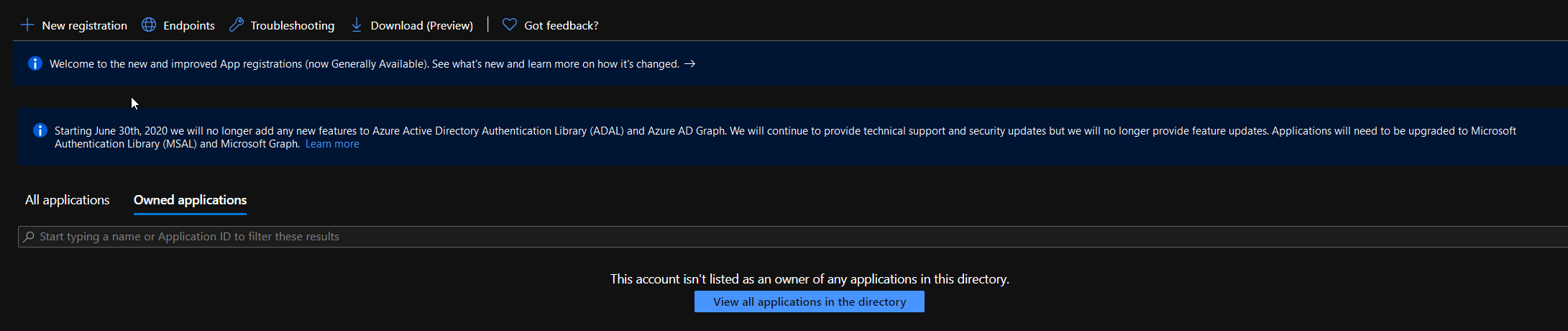
Click on the New Registration and fill the various fields accordingly, unless you have specific needs all default values should suffice for most configurations/deployments. I am assuming a single tenant deployment in the following example
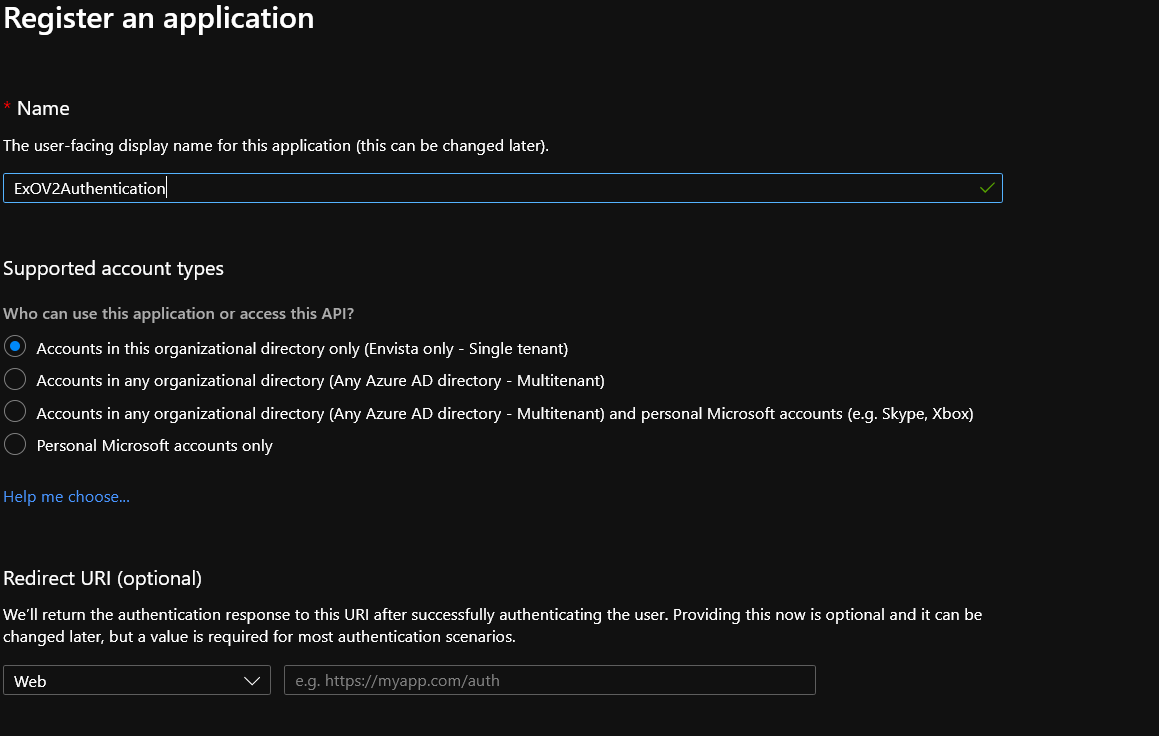
Once done click on the Register button, provision will only take a couple of seconds.

Note: The only field really needed in the Name one just be sure to choose a descriptive name that is easy for you to remember.
Exchange Online Certificate Based authentication - Grant API Permissions
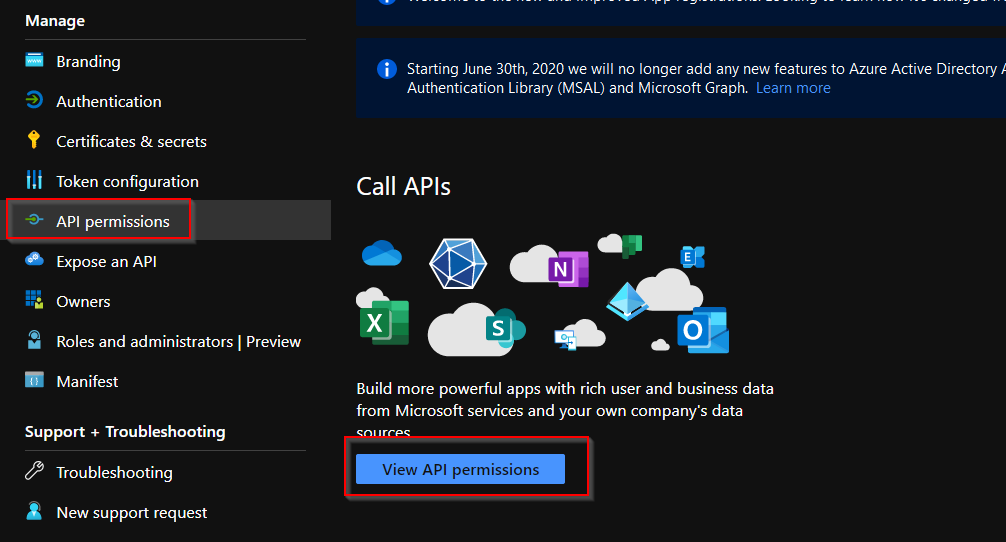
Once the application has been registered we need to configure/grant API permissions that will define what our application can and cannot do. Either select API Permissions from the left blade or from the link directly below the API properties and select Add permission
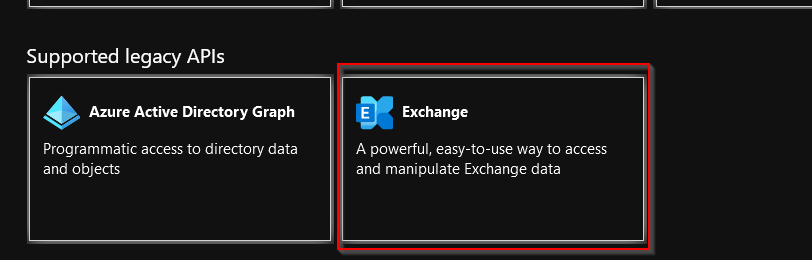
From the Request API Permissions scroll all the way down the Supported Legacy APIs and select Exchange, Application Permissions and finally tick Exchange.ManageAsApp under the Exchange section
Historical UI note: The screenshot uses the portal labels from 2020. Use the current Microsoft procedure to locate the Exchange application permission; the old label is not a statement about Microsoft Graph capabilities.
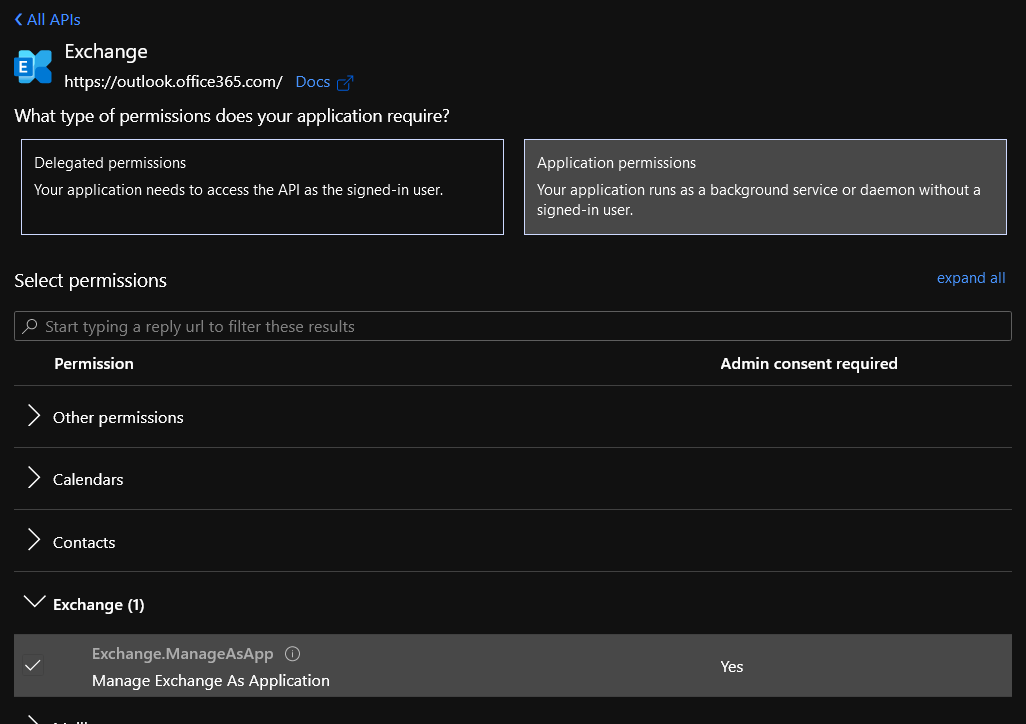
The last step involves clicking the **Grant Admin Consent for

Exchange Online Certificate Based authentication - Configure Authentication
For this certificate-based flow, the application uses its certificate and private key to obtain an access token. Tokens are part of the authentication process; the original claim that token authentication is inherently less secure was incorrect.
Self-signed certificates can be used, but possession of the private key permits authentication as the application. Protect private-key access, rotate certificates and do not commit private keys or their passwords to a repository.
You can easily create a self-signed certificate via PowerShell with the following command:
$paramNewSelfSignedCertificate = @{
    Subject           = 'Exchange Online Background Process'
    CertStoreLocation = 'cert:\CurrentUser\My'
    KeySpec           = 'KeyExchange'
    FriendlyName      = 'Exchange Online Authentication Certificate'
}

New-SelfSignedCertificate @paramNewSelfSignedCertificate

# Output
Thumbprint                                Subject
----------                                -------
1B1541D37888EFECD058B528524764G0EF8608D4  CN=Exchange Online Background Process
Note: Certificate will be automatically installed in the local certificate store under User / Personal Certificates and have, by default, validity of 1 year.
Open Certificate Manager MMC console and under Certificates Current User / Personal / Certificates right-click on the certificate and select All Tasks / Export. Just follow the export wizard be sure to select Do not export private key and select CER as the export format.
In the Azure Portal select Certificates and Secretes from the left blade and Upload certificate navigating to the path where the certificate has been exported/stored
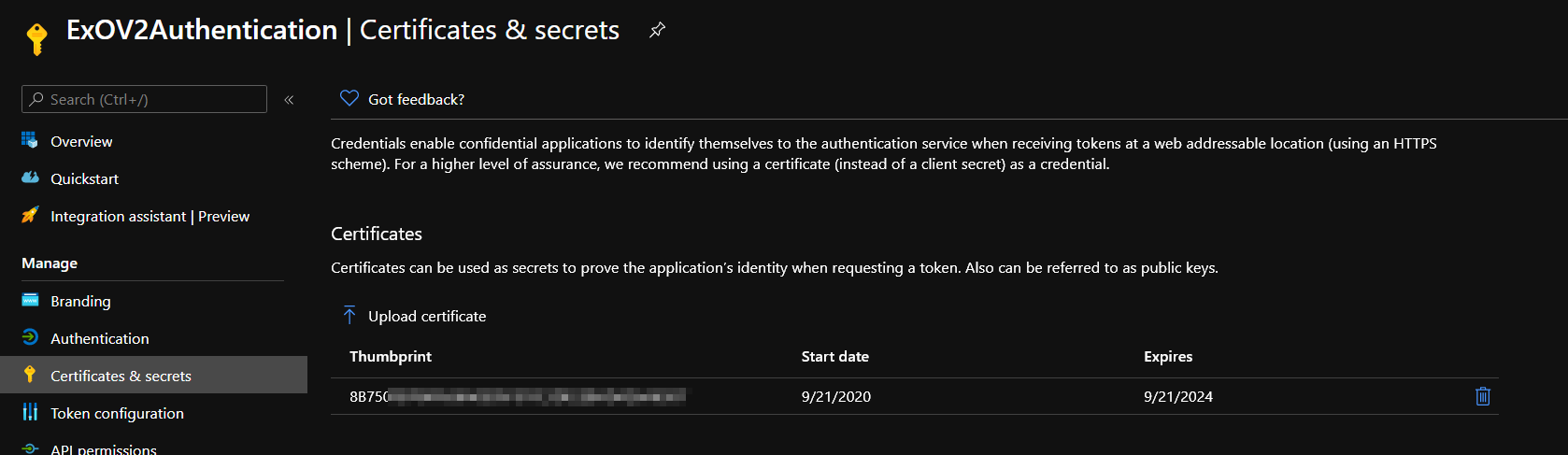
Note: Write down the certificate thumbprint displayed in the Azure page as we will need this later on.
Exchange Online Certificate Based authentication - Grant permissions
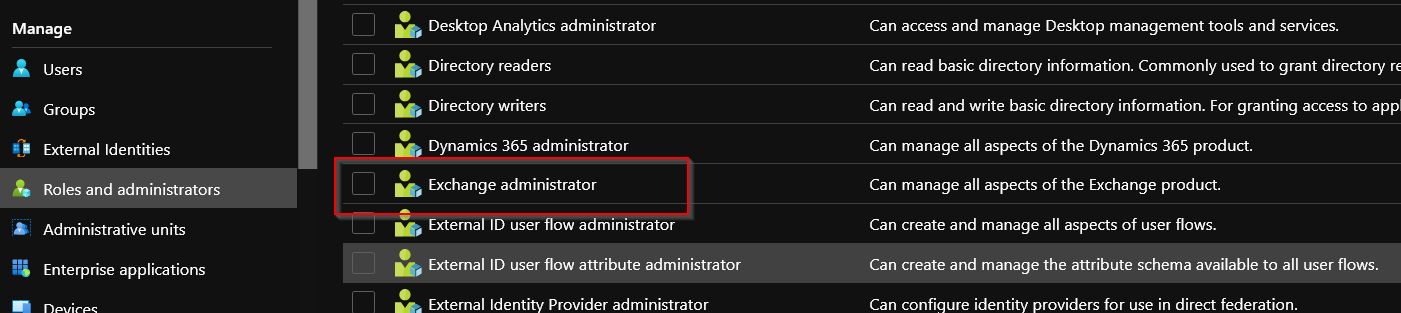
The following screenshots show the original broad Microsoft Entra directory-role assignment. Current Exchange Online app-only guidance also supports custom role groups assigned through service principals. Use those options when the task needs fewer commands or a restricted recipient write scope; review the complete permission set because grants from different sources combine.
Do not assign a permanent Exchange Administrator role simply to reproduce these screenshots. Choose the authorisation model in the current app-only procedure.
With the Azure AD blade selected go to Roles and administrators and select Exchange Administrator confirming with the Add Assignment button
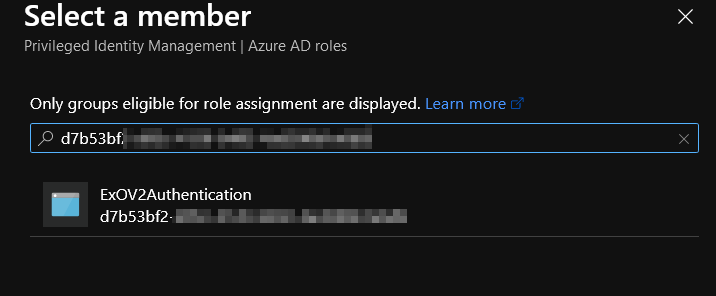
In Select Member windows you will need to search application by GUID and select it
In the Add Assignment page be sure to select Active under Assignment Type and tick the Permanently Assign checkbox
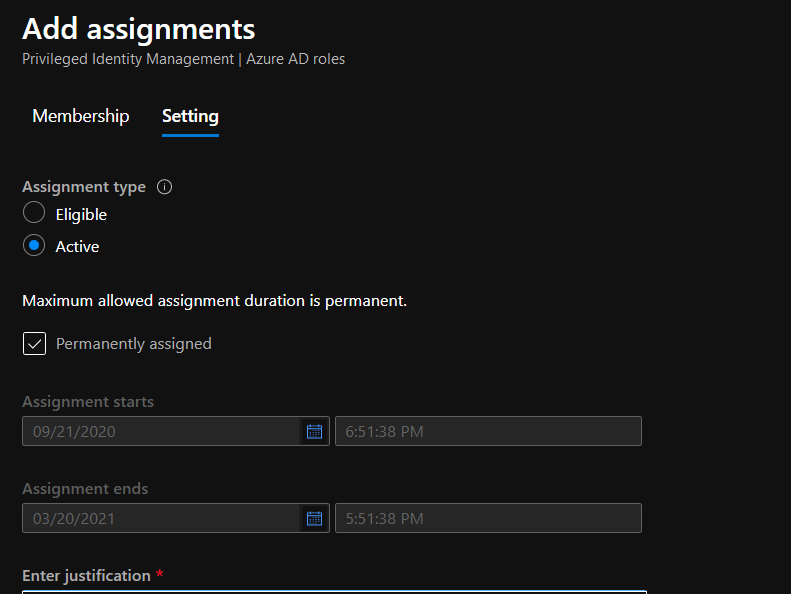
Once configuration is complete you will see a page similar the following

Where you can review applied configuration and make any required change.
Exchange Online Certificate Based authentication - Testing connection
After configuring the application using current guidance, this connection pattern uses a certificate in the Windows certificate store. Define the three variables below with your own configuration first. The historical module version 2.0.3 is not a deployment prerequisite today.
$paramConnectExchangeOnline = @{
    CertificateThumbprint = $certThumbPrint
    AppId                 = $appId
    Organization          = $exchangeOrgId
}

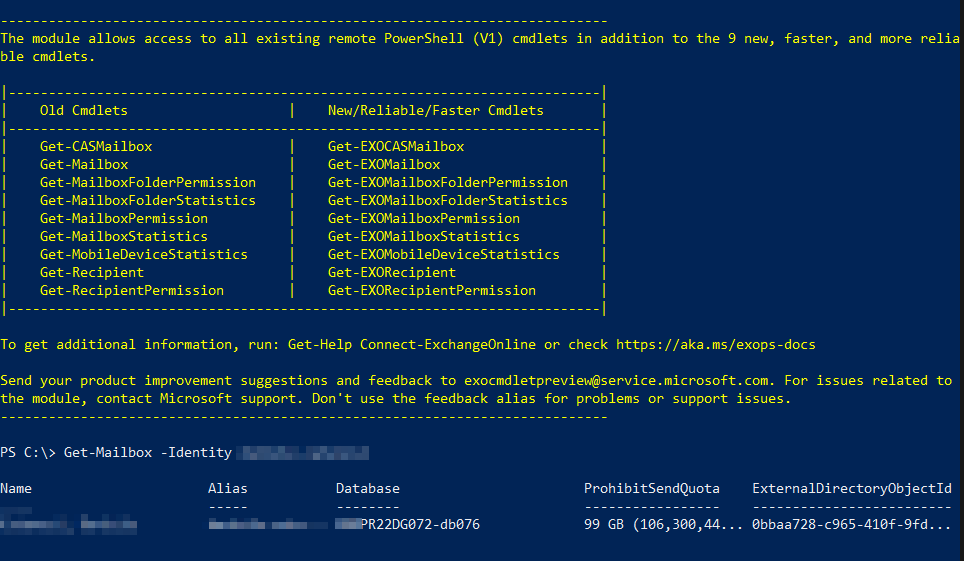
Connect-ExchangeOnline @paramConnectExchangeOnline
Where certThumbPrint is the certificate thumbprint we created and uploaded to Azure, appId is the ID of the application we created and exchangeOrgId is the name of the tenant in the form tenantName.onmicrosoft.com
And here’s the result
Closing notes
This was quite a long post but steps to get up and running with Exchange Online Certificate based authentication are numerous even if not difficult to implement but well worth following.
Certificate Based authentication resolves a number of challenges administrators had to face up to this point, chief among all storing credentials without storing a user password in the script. The certificate’s private key is itself a credential and must be protected.